
Chapter 9 · 9.1
Sharing a document with a colleague
Want to work on a document together with a colleague? Share the file with them. Your colleague has their own account in your WebOké Nextcloud and will then see the file in their own files.
Sharing from Files
- In your WebOké Nextcloud, go to Files and find the document.
- Click the share icon next to the name, the little figure with a plus sign (1). The sidebar opens on the right with the Share tab.
- Under Internal shares (2), you share with colleagues who have an account in your Nextcloud. Under External shares (3), you share with people outside your organisation, and with Create public link (4) you create a link that anyone can open.

- Click in the field under Internal shares and type the first letters of your colleague's name. Choose them from the list (1).
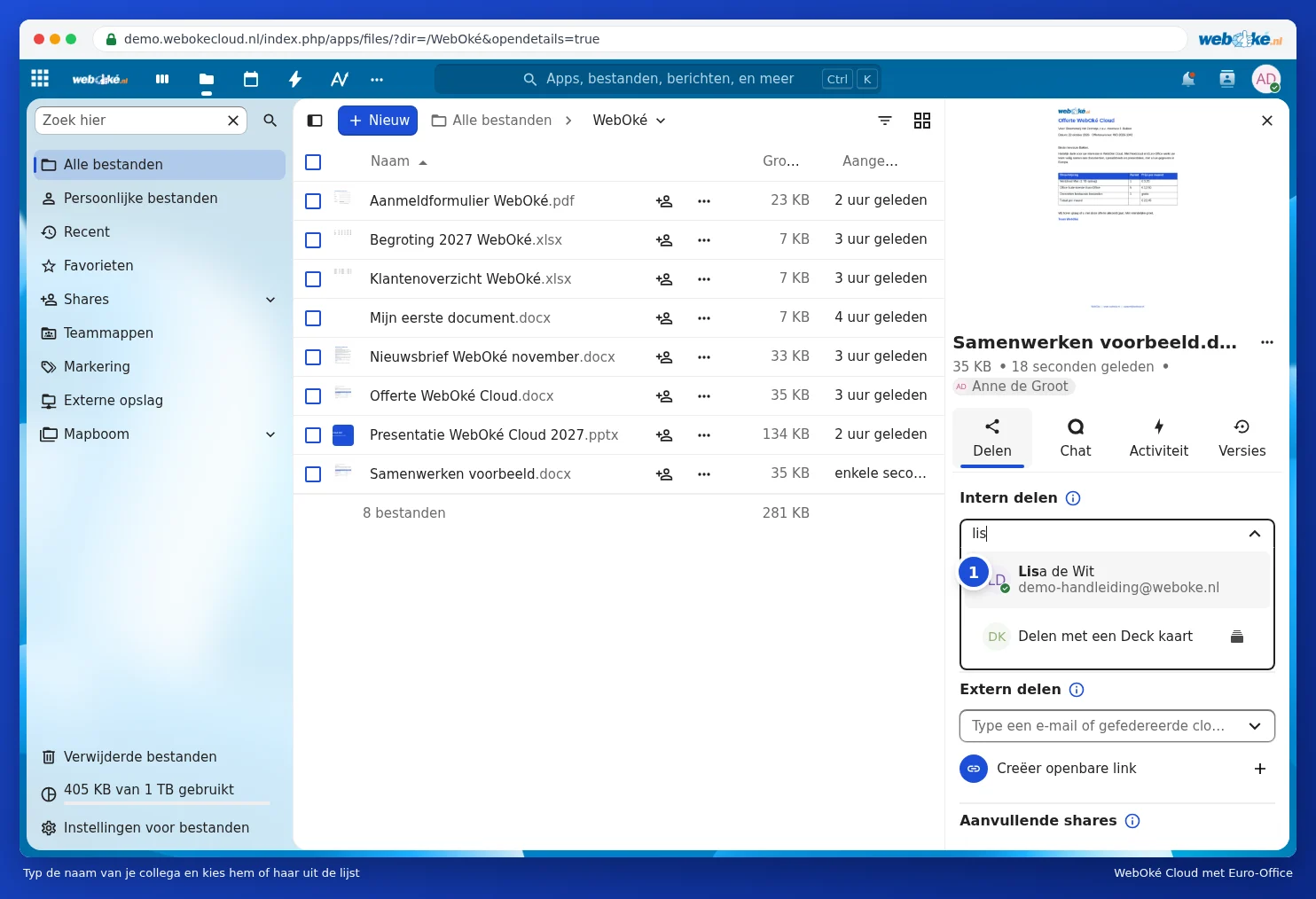
- Choose what your colleague is allowed to do: View only (1) or Allow editing (2). If you want to work on the document together, choose Allow editing.
- Click Save share (4).

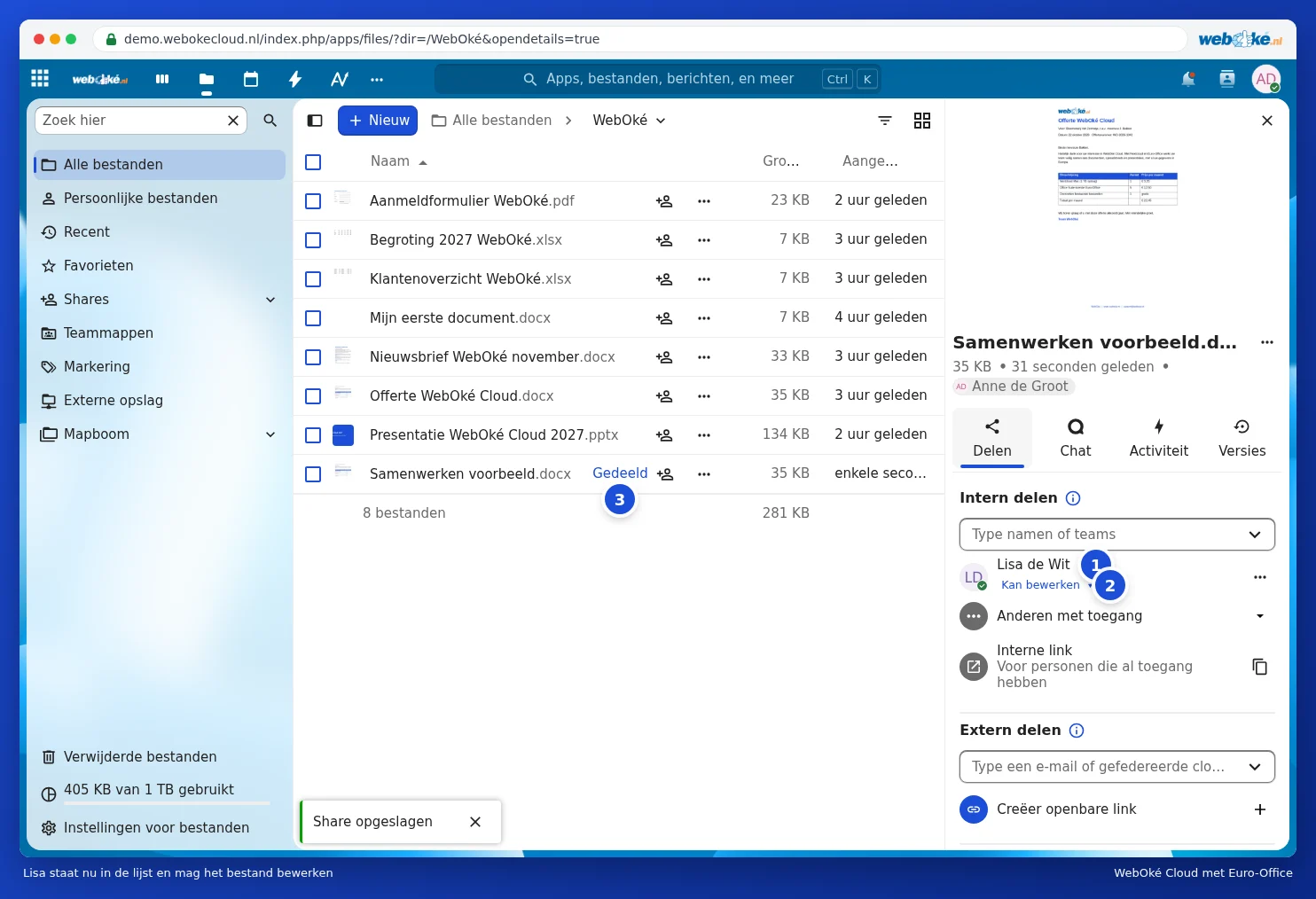
Your colleague now appears in the list (1), with their permissions shown underneath (2). Click this to change the permissions later. In the list of files, you can see that the document is shared (3).
More settings
Before you save, click Advanced settings (3 in the image with the permissions). There, you can set an expiry date (1): after that date, your colleague can no longer access the file. You can also add a note (2), for example "Could you check the prices?", and choose whether your colleague can download and sync the file.

Sharing from the editor
Already have the document open? Click Share in the top right (1). The same button appears on the Collaboration tab.
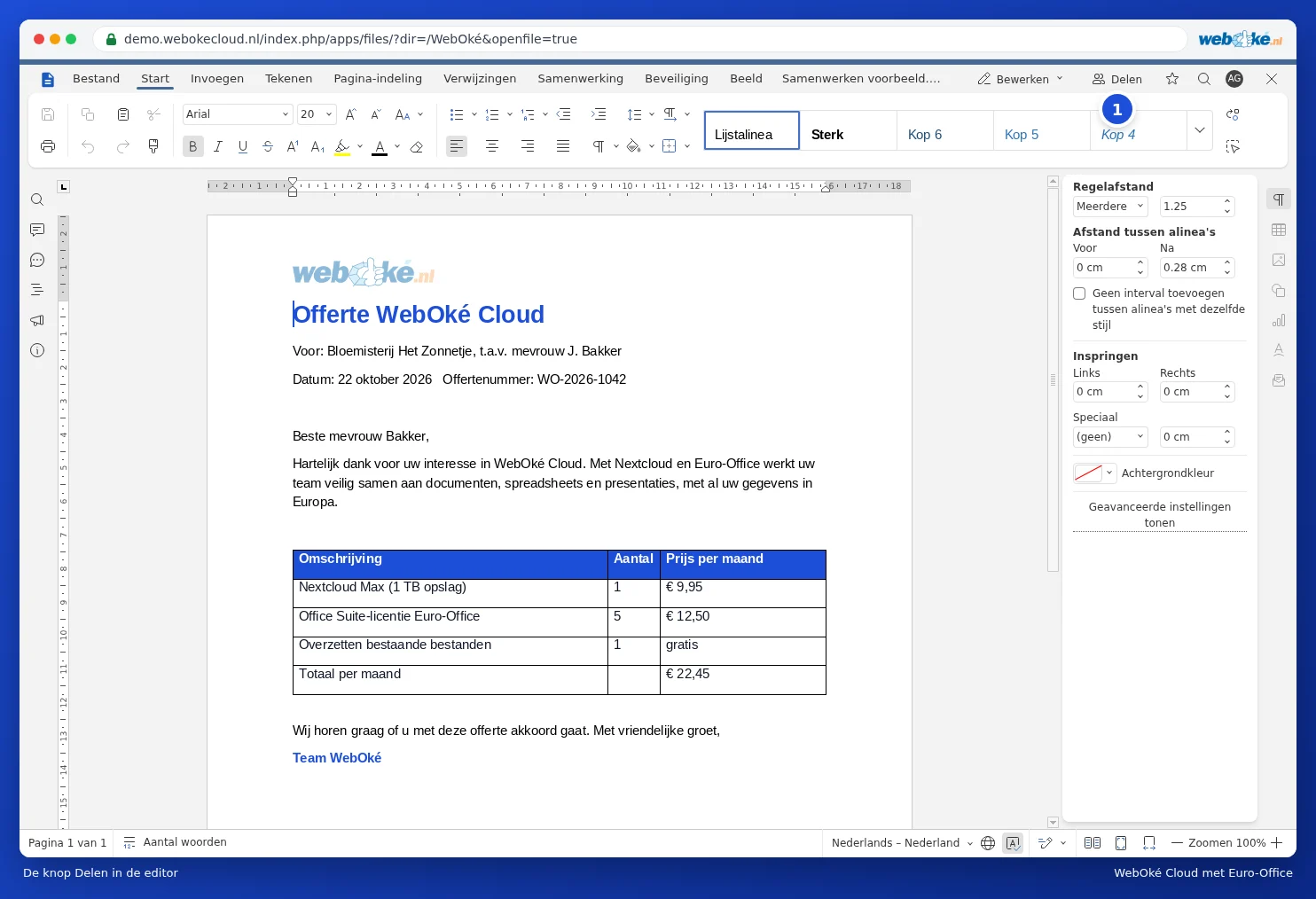
The same sharing sidebar then opens next to your document, just as in Files. So you can share without closing the document.

Unshare
No longer want to share the file? In the sharing sidebar, click the three dots next to your colleague's name and choose Unshare. Your colleague will then no longer see the file.
Tip: do you often share with the same group of colleagues? Then it's better to share an entire folder, or use a team folder. Anything you put in that folder becomes automatically available to everyone.