
Chapter 2 · 2.2
Creating a new document, spreadsheet or presentation
Watch it in a short video
You create a new file in the folder where you want to keep it. So first open the right folder.
Step 1: click New
Click the New button (1) at the top. A menu opens. Choose what you want to create:
- New document (2): a text document, such as a letter or quote (docx).
- New presentation (3): a presentation with slides (pptx).
- New spreadsheet (4): a spreadsheet, such as a budget (xlsx).
- New PDF form (5): a fillable PDF form.

Please note: the Text option creates a simple text file (md) for the Nextcloud Text app, not a Word document. So for letters and quotes, choose New document.
Step 2: give your file a name
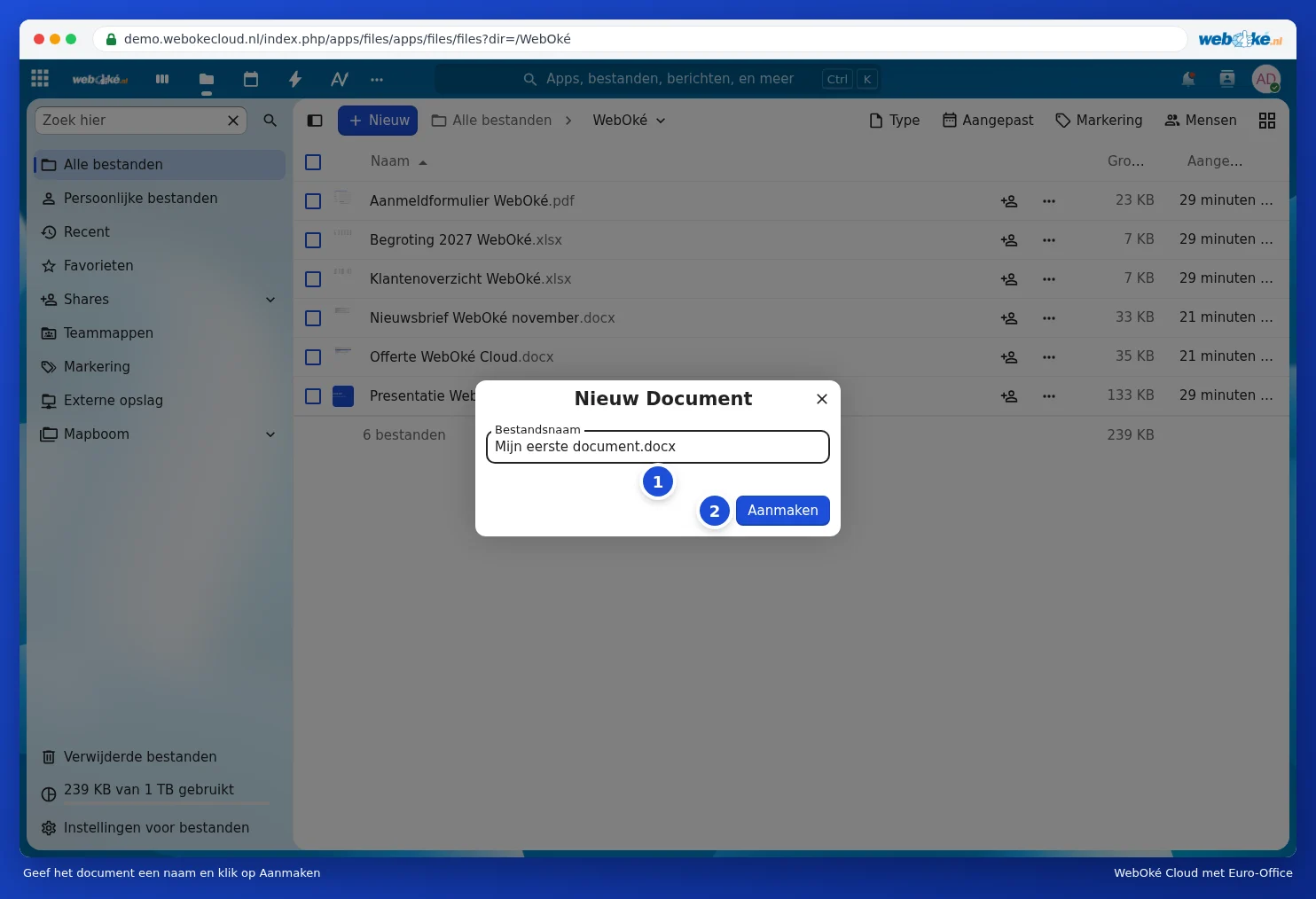
Type a clear name (1) and click Create (2). Keep the extension at the end, such as .docx for a document, .xlsx for a spreadsheet and .pptx for a presentation. This is how Nextcloud recognises what type of file it is.
Step 3: start writing
Your new file opens straight away in Euro-Office. You can start right in. Everything you do is saved automatically.
