
Chapter 7 · 7.4
Creating a PDF Form
In Euro-Office, you can also create your own fillable form, for example a registration form or a customer questionnaire. You start with a PDF, or create a new PDF form in Nextcloud via New.
- Open the PDF and select Edit mode in the top right.
- Go to the Forms tab (1).
- Choose a field and click on the spot in the PDF where it should go. Drag the edges to make the field larger or smaller.
- On the right, set up details for each field, such as the name, a Placeholder (the grey sample text), a Tip, whether the field is Required, and the formatting.
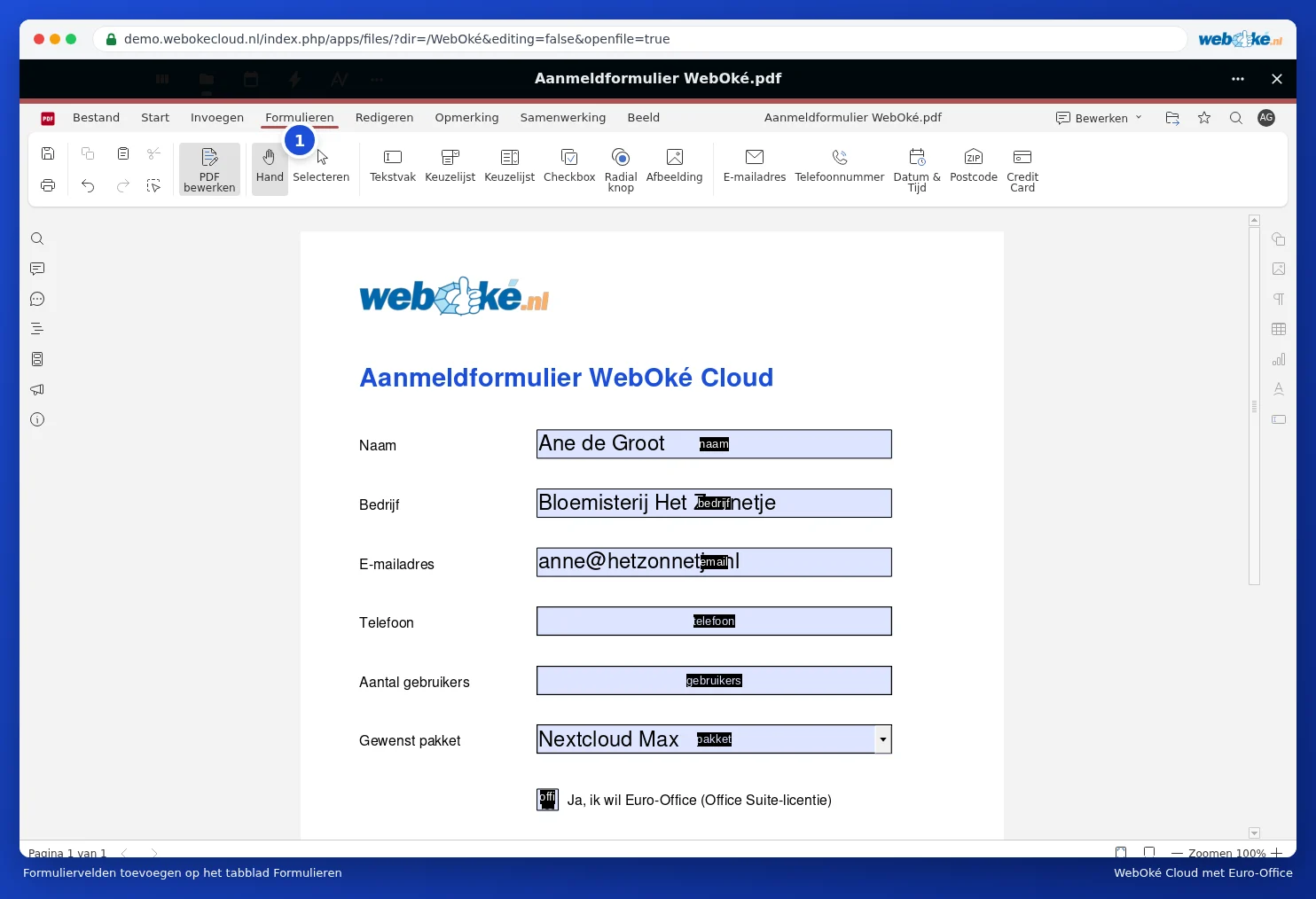
Types of fields
| Field | What it's for |
|---|---|
| Text box | Free text, such as a name or comment |
| Combo box | Choosing from fixed values, such as a package. There are two Combo box buttons: a drop-down list and a list where the choices are shown directly. |
| Checkbox | A box to tick |
| Radio button | Exactly one choice from a few options |
| Image | A spot for a photo or logo |
| Email Address, Phone Number, ZIP Code | Fields that check whether the entry is correct |
| Date & Time | Choosing a date from a calendar |
| Credit Card | A field for a card number |
Tip: give related fields a clear name, such as "name", "company" and "email". That way, you can easily process the submitted data later.