
Chapter 3 · 3.2
Zoom, view and theme in Euro-Office
Zoom
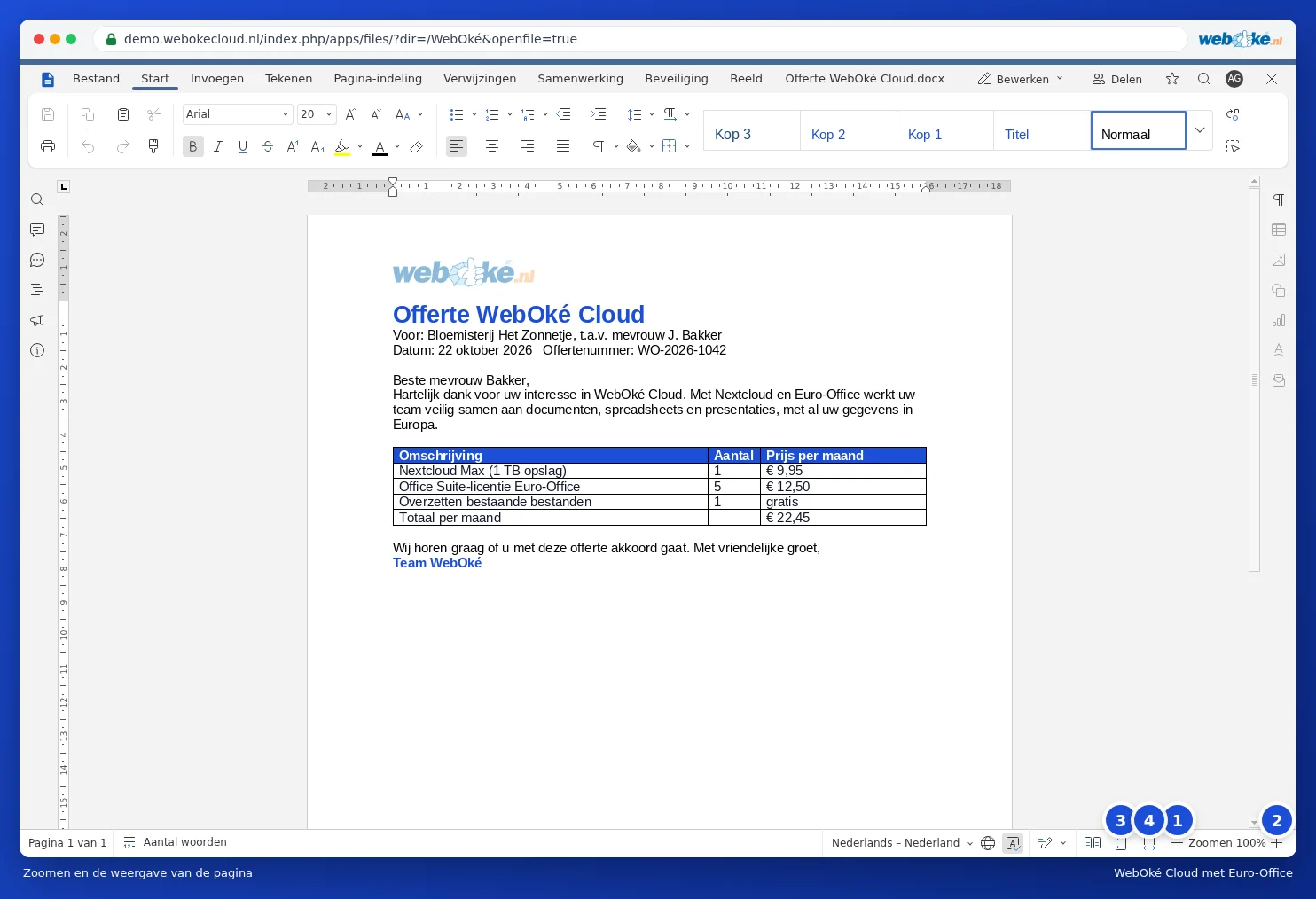
In the bottom right of the status bar, you can zoom out (1) or in (2). With Fit to Page (3) you see the whole page, and with Fit to Width (4) the page fills the width of your screen. You can also hold down Ctrl and scroll with your mouse.
The View tab
On the View tab (1), you choose what you see: the headings in the left sidebar, the zoom, multiple pages side by side, and whether you want to see the toolbar, status bar, sidebars and rulers. Want more space for your text? Then turn off the toolbar or the rulers.

Light or dark theme
Would you rather work with a dark screen? Then choose File, then Advanced Settings (1). There you can also set up other things, such as autosave, how you collaborate, and spell check.

Scroll down to the Appearance heading. Under Interface Theme (1), the default is Same as system: Euro-Office then follows your computer's setting. Here you can choose, for example, Light or Dark, and click Apply at the bottom. With Turn on document dark mode, the document itself also becomes dark.
