
Chapter 4 · 4.7
Headers, footers and page numbers
Watch it in a short video
A header appears at the top of every page, a footer at the bottom. You can use them for your logo, your company details or the page number.
Creating a header or footer
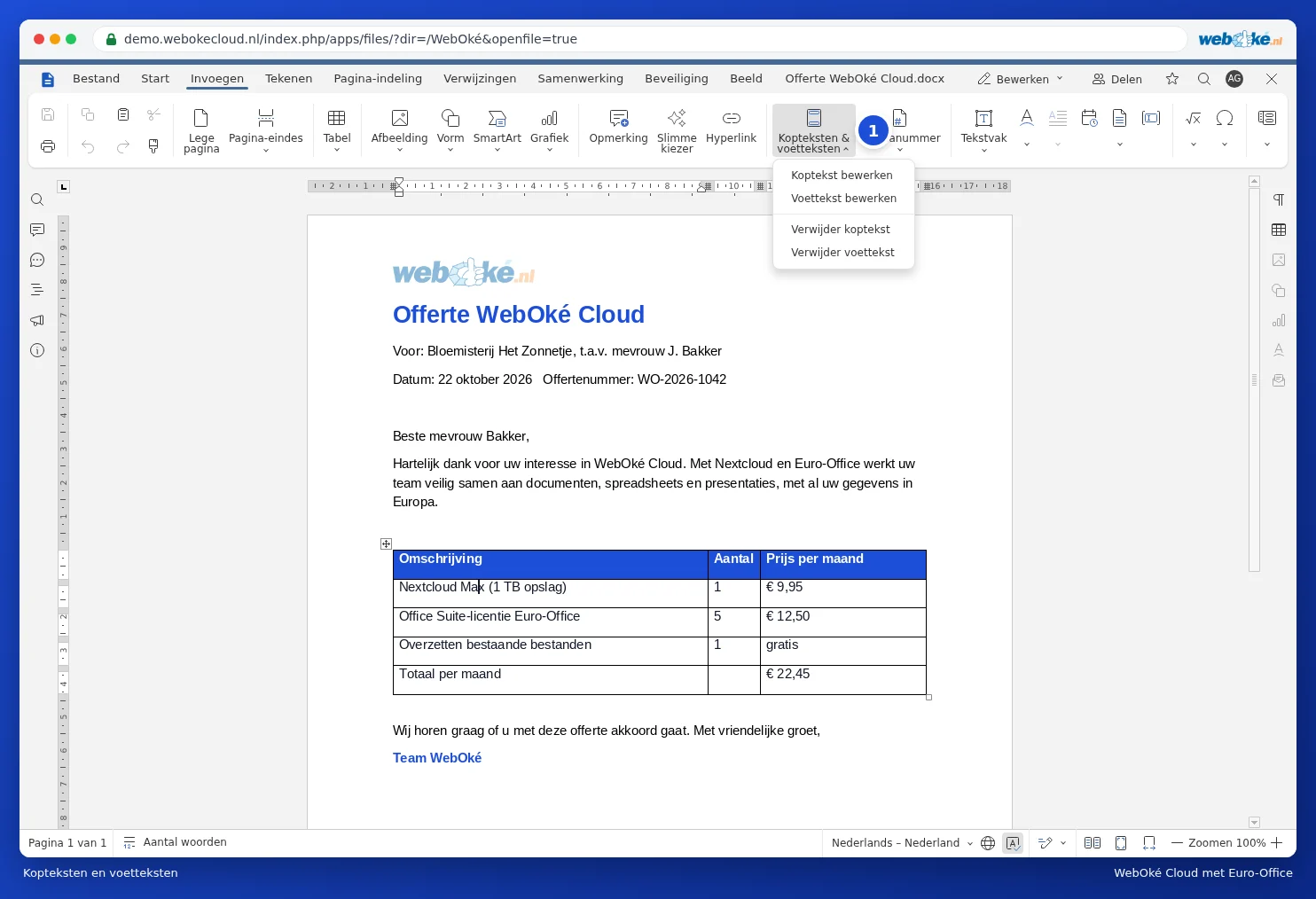
- Go to the Insert tab and click Headers & footers (1).
- Choose Edit header or Edit footer.
- Type your text or insert an image, such as your logo.
You can also double-click at the top or bottom of the page. The regular text then becomes lighter and you work in the header or footer. An extra tab with settings appears. Click Close or double-click in the regular text to go back.

Adding page numbers
Click Page number and choose the position: top or bottom, left, centre or right. Use Number of pages to add the total, so you get something like "page 2 of 5".

A different first page
Don't want a header on the cover page? When editing the header, tick Different first page. Use Different odd and even pages to create separate headers and footers for left and right pages, handy for a booklet.