
Chapter 14 · 14.2
Testing your website before a move
Are you already setting up your website at WebOké while the domain name is still with your current provider? Then when you type your domain, you'll still see the old site. With Test your website before moving you can already view the new version at us before the move. Your current site stays online as normal, you don't change anything in your DNS, and you don't need an account for it.
You'll find the tool on the website in the Tools menu.
Two ways

| Preview in your browser | Via the proxy setting | |
|---|---|---|
| Set up | Nothing, you're ready right away | Set up once in your browser or computer |
| Devices | Any device, including phone and tablet | Mainly on the computer |
| Sharing with your client | Yes, with the Sharing button | No, everyone sets it up themselves |
| Address in the address bar | A preview address | Just your own domain |
| Best for | Quick checks and showing someone | Thorough testing: logging in, forms, webshop |
For both options, the domain must already be added to a package at WebOké. The move itself doesn't need to have happened yet. You can read how to add a domain to a package in Domains per package and moving a domain.
Preview in your browser
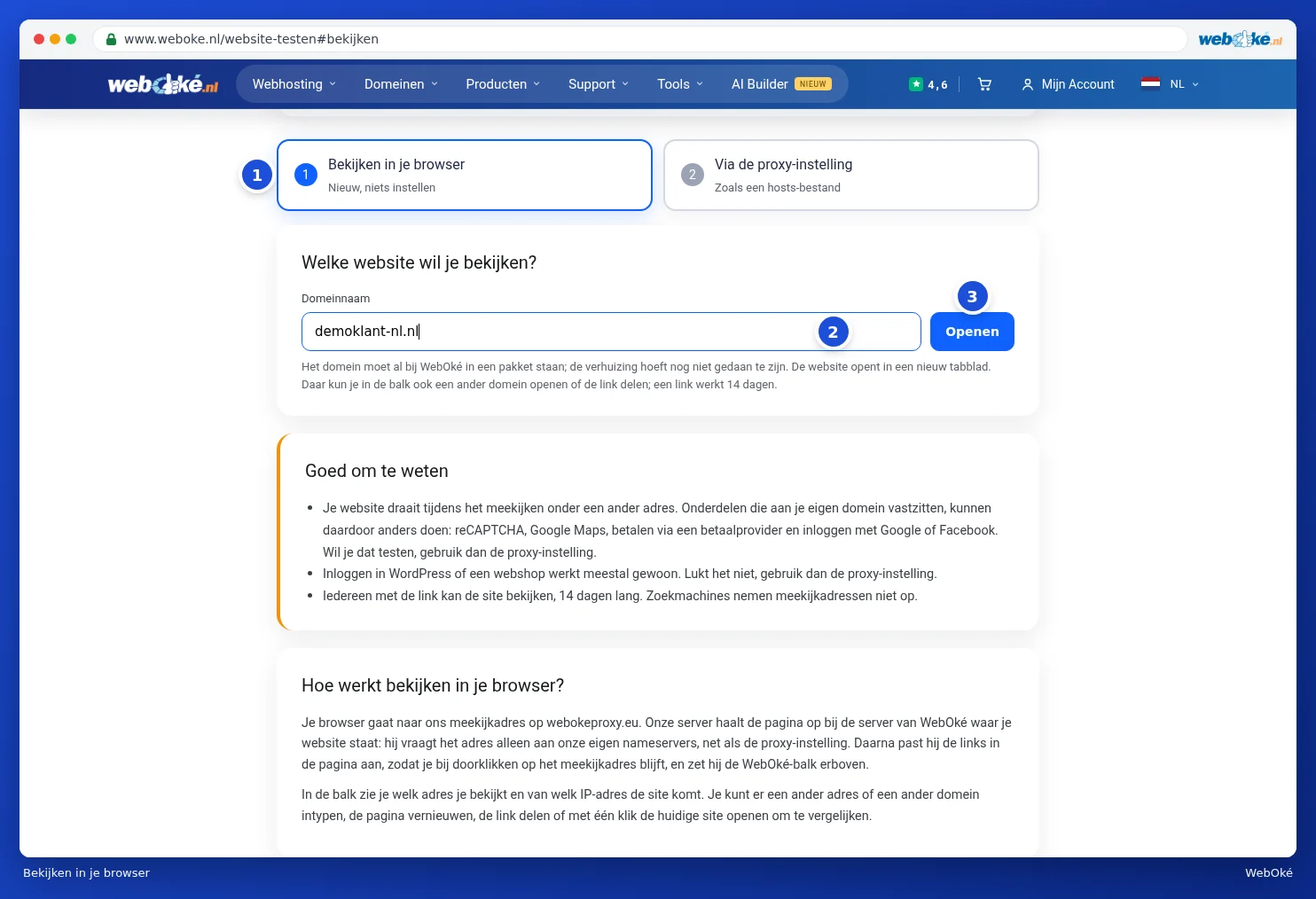
- Choose the Preview in your browser tab (1).
- Enter your domain under Domain name (2).
- Click Open (3).
Your website opens in a new tab, with a blue bar above it. In that bar you can see which version you're viewing and which IP address the site is coming from. You can type in a different address or domain and click Go, Refresh the page, use the Sharing link to share it with, for example, your client, or use Current site to open the site as it's currently online, for comparison.

Please note: while previewing, your site runs under a different address. Elements that are tied to your own domain, such as reCAPTCHA, Google Maps, payments, or logging in with Google or Facebook, may behave differently as a result. If you want to test that, use the proxy setting instead. Anyone with the link can view the site for a while. Search engines don't index preview addresses.
Via the proxy setting
With the proxy setting you simply open your own domain and see the site exactly as it will look after the move, just like with a modified hosts file.
- Choose the Via the proxy setting tab.
- Enter your domain under Domain name and click Add. You can add multiple domains. Subdomains such as www are included automatically.
- Your domain now appears in the list (1). Below it, Your address for the proxy setting appears (2). Click Copy (3).
- Paste that address into the proxy setting of your browser or computer, as described below.
- Open your domain in a private window. You'll now see the version at WebOké.

For each domain in the list, choose At WebOké or Current site to select which version you want to see. This lets you quickly compare the old and new site. Use Delete to remove a domain from the list.
At the top of the list you can see whether your browser is already using the proxy. Next to the address you'll see when your browser last retrieved it and until when it's valid. Use the 14 days left button to extend the address again, or Stop testing to turn it off completely. If you forget to turn it off, it will stop by itself after a while.
Tip: save the page if you want to continue testing later. The address is tied to the browser you created it with.
Setting up the address in your browser
Under Set up in your browser you'll find a step-by-step plan for every situation. Choose the tab that applies to you (1): Firefox, Chrome or Edge on Windows, Mac (Safari or Chrome) or Turn off again.

Firefox has its own proxy setting: the rest of your computer won't notice anything. This is the easiest way. If you use a VPN, choose Firefox too: the Windows or macOS setting is often ignored when a VPN is active.
Please note: a warning about the certificate is normal. As long as your domain hasn't moved to us yet, we can't create an SSL certificate for it yet. Choose to continue to view the site. After the move your site will automatically get a valid certificate.
Still seeing the old site? Reload the page with Ctrl + Shift + R (Mac: Cmd + Shift + R) or open your domain in a private window. Browsers often store a website for a while and then still show the saved version.
And then?
Does everything look good? Then move your domain name to WebOké. See The transfer centre: transferring domains to WebOké. If you also want to move your email, read Migrating email to WebOké (including from Microsoft 365).