
Chapter 3 · 3.4
Setting, changing or forgetting your password
Watch it in a short video
You manage your password under Login details. You'll find this in the menu at the bottom left, or via My Administration and then the Login details tab. Forgotten your password? Then set a new one via the login page.

At the top, you can see which second step you're using (1), see The login code by email (two-step verification). On the left is your Login email address (2). On the right, you can change your password.
Changing your password
- Enter your current password under Current password (3).
- Enter a new password under New password (4).
- Type the new password again under Confirm your new password (5). Use the eye icon to see what you're typing.
- Click Save changes (6). You'll see a message confirming your password has been changed.
After changing it, you'll stay logged in yourself. On all other devices, you'll be logged out. There, you log in with your new password.
What should your password look like?
- At least 8 and no more than 72 characters.
- Not a password that many people use, such as welcome123 or 12345678.
- Not your own name or email address.
Tip: a long sentence of three or four separate words is strong and easy to remember. Capital letters or numbers aren't required. Use a password for WebOké that you don't use anywhere else.
Setting a password for the first time
Did you order with us? Then we created your account without a password. Your dashboard will then show the message Secure your account: set your password with the Set password button. This takes you to Login details on the Set your password card. You don't need to fill in a current password: choose a new password, type it twice and click Save changes. The message will then disappear from your dashboard.
Forgotten your password
- On the login page, click Forgot your password?.
- Enter your email address (1). Don't remember which address you used? Then enter one of your domain names, for example yourcompany.nl.
- Click Send reset link (2).
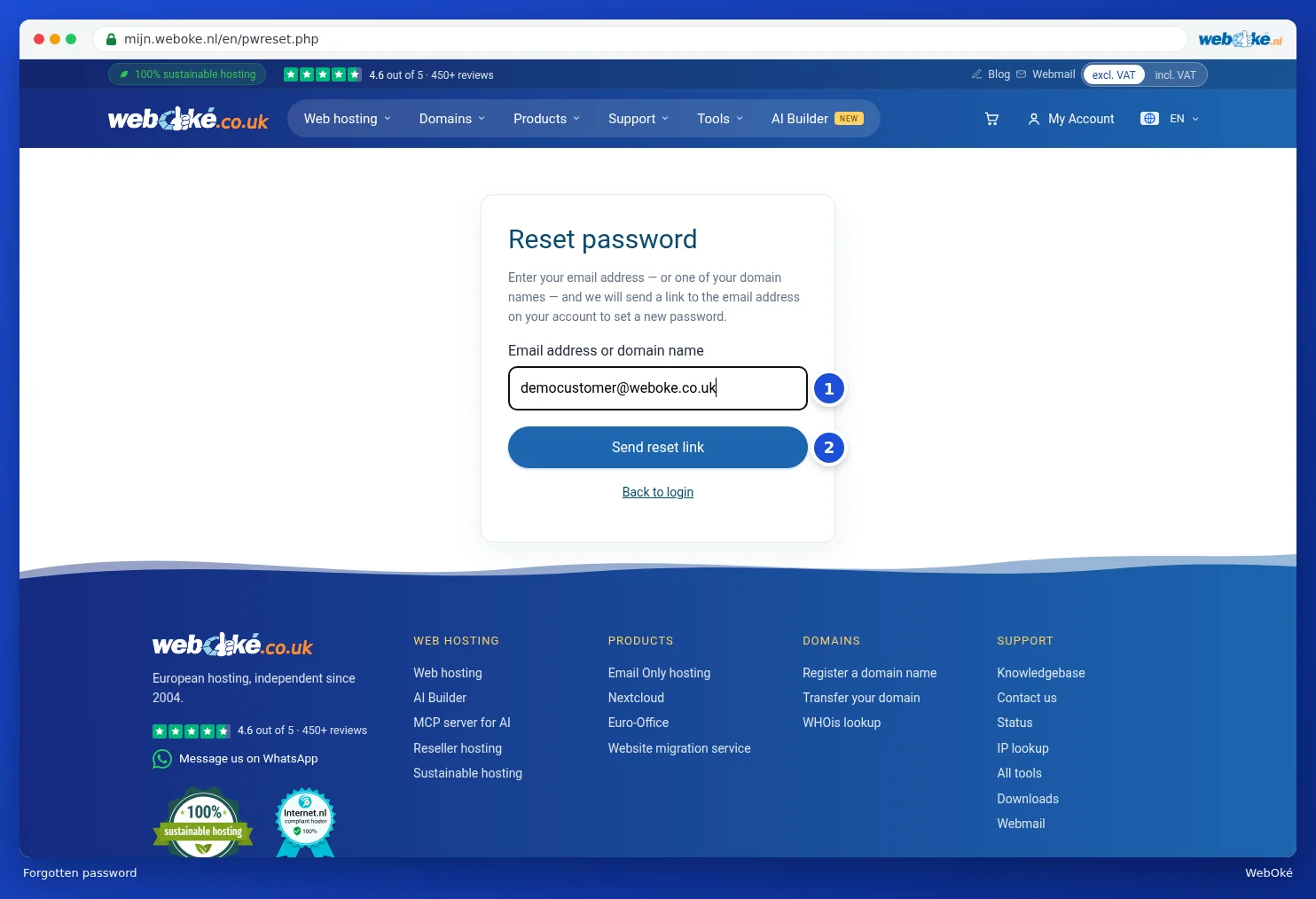
You'll always see the same message, even if the address or domain isn't known to us. This way, no one can find out who is a customer. The email always goes to the email address of the account, even if you entered a domain name.

- Open the email Set a new password and click Change your password. The link works for two hours.
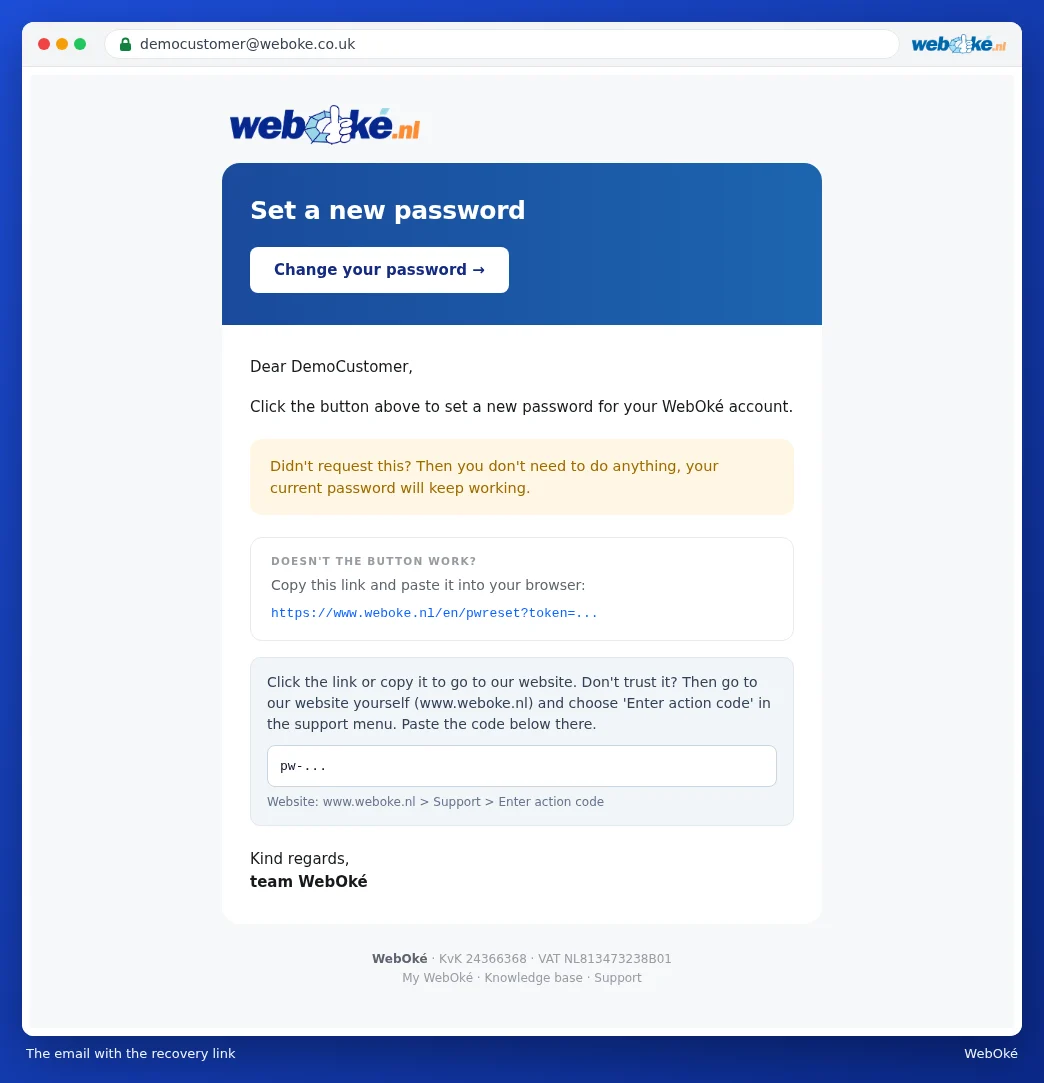
Don't trust the link in the email? That's wise with any email containing a link. In that case, go to the website yourself and choose Enter action code under Support in the menu. Paste the code from the email there. You'll end up on the same screen.
- Enter your new password (1) and type it again (2).
- Click Save password (3). You'll receive a confirmation by email. Then log in with your new password.

Please note: setting a new password via the reset link logs you out on all devices. Did you receive a reset email that you didn't request yourself? Then there's nothing you need to do. Your current password will keep working.