
Chapter 5 · 5.6
Set up email quickly in the DNS
For email on your own domain, a few DNS records need to be exactly right. That's why the DNS tab has the Email settings card. It shows you at a glance how your mail is set up, and lets you set the right records for your mail provider with a single click.
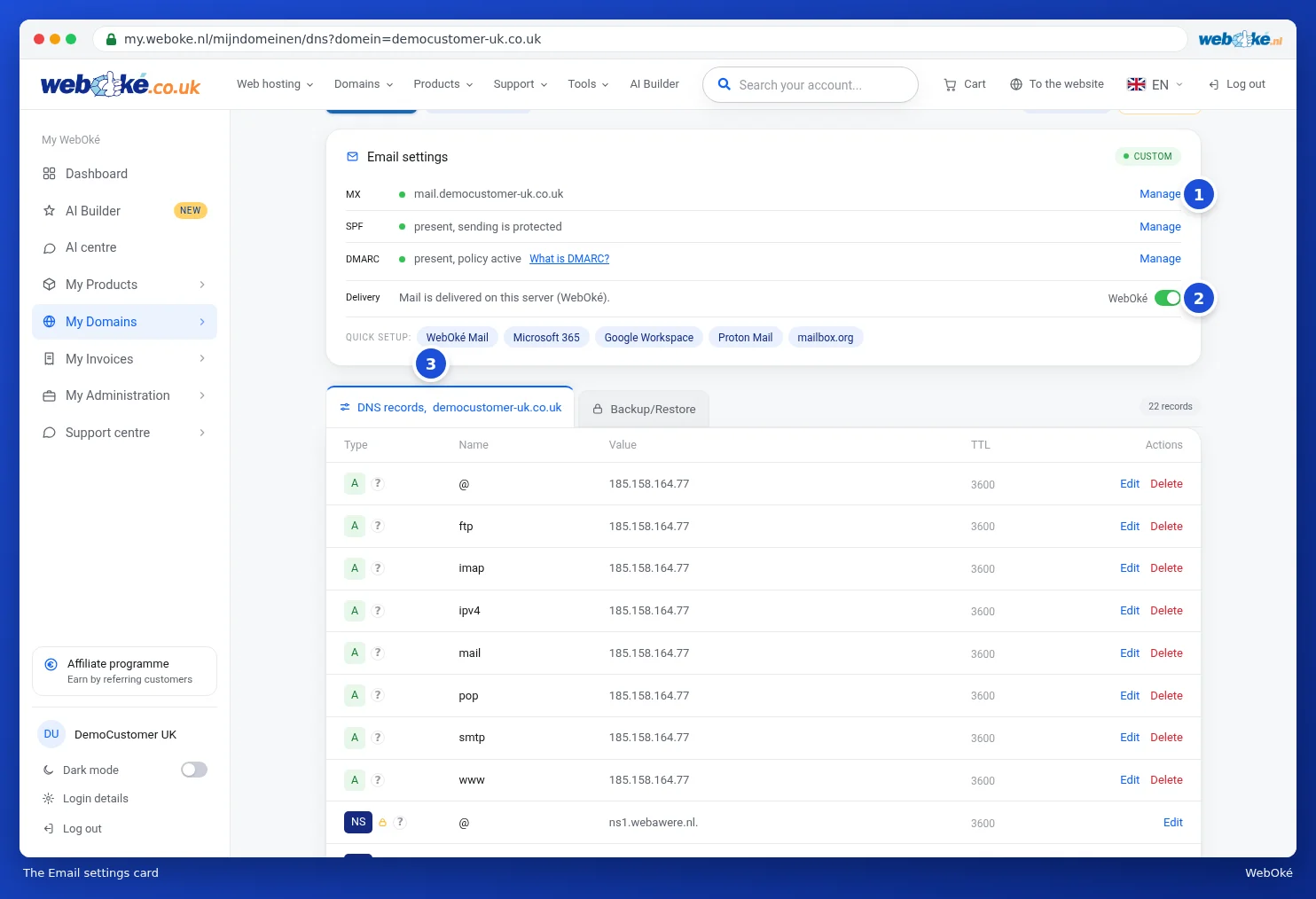
What do you see on the card?
- MX, SPF and DMARC, each with a coloured dot: green means all is well. Click Manage (1) to open the record in the builder from DNS helpers: MX, SPF, DMARC, CAA and SRV. If a record is missing, you'll see Add or Set up instead.
- In the top right, you can see which mail provider we recognise from your MX record.
- Delivery (2): whether email for this domain is delivered to WebOké's server. If the switch is set to WebOké, your mailboxes arrive with us. If you use an external mail provider, it's set to External.
- Quick setup (3): buttons for WebOké Mail, Microsoft 365, Google Workspace, Proton Mail and mailbox.org.
How to set up your mail in one go
- First make a backup of your DNS, so you can always go back. See Restoring DNS and creating a DNS backup.
- Under Quick setup, click your mail provider. The Set up email window opens.
- Under These records will be placed (1), you'll see exactly which records will be added.
- Read the yellow notice. Existing MX and SPF records are replaced, and delivery is adjusted.
- For an external provider, under You still do this yourself afterwards (2), you'll see what you still need to arrange with that provider, such as verifying your domain there and turning on DKIM.
- Click Set up records (3), or Cancel if you don't want to make any changes yet.

The same buttons are also available on the domain page, in the Domain / Email health card (see Domain and email health: checking and fixing).
Tip: if you use a WebOké hosting package, the DKIM record for your mail is usually already set up correctly. You can read about what the Set up email card on your product page shows in The Set up email card (MX, SPF, DKIM, DMARC). If mail still isn't arriving, see Mail not arriving: check it yourself.