
Chapter 17 · 17.3
Resource Usage: CPU, memory and processes
Your website shares a server with other websites. To make sure no one is affected by someone else, each package gets its own share of the server: so much processing power (CPU), so much memory, so many processes at once. We call this Resource Usage. If your website goes over this, it slows down or temporarily shows an error. In Resource Usage, you can see how close you are to these limits.
Opening Resource Usage
- In DirectAdmin, under Extra Features, click Resource Usage.
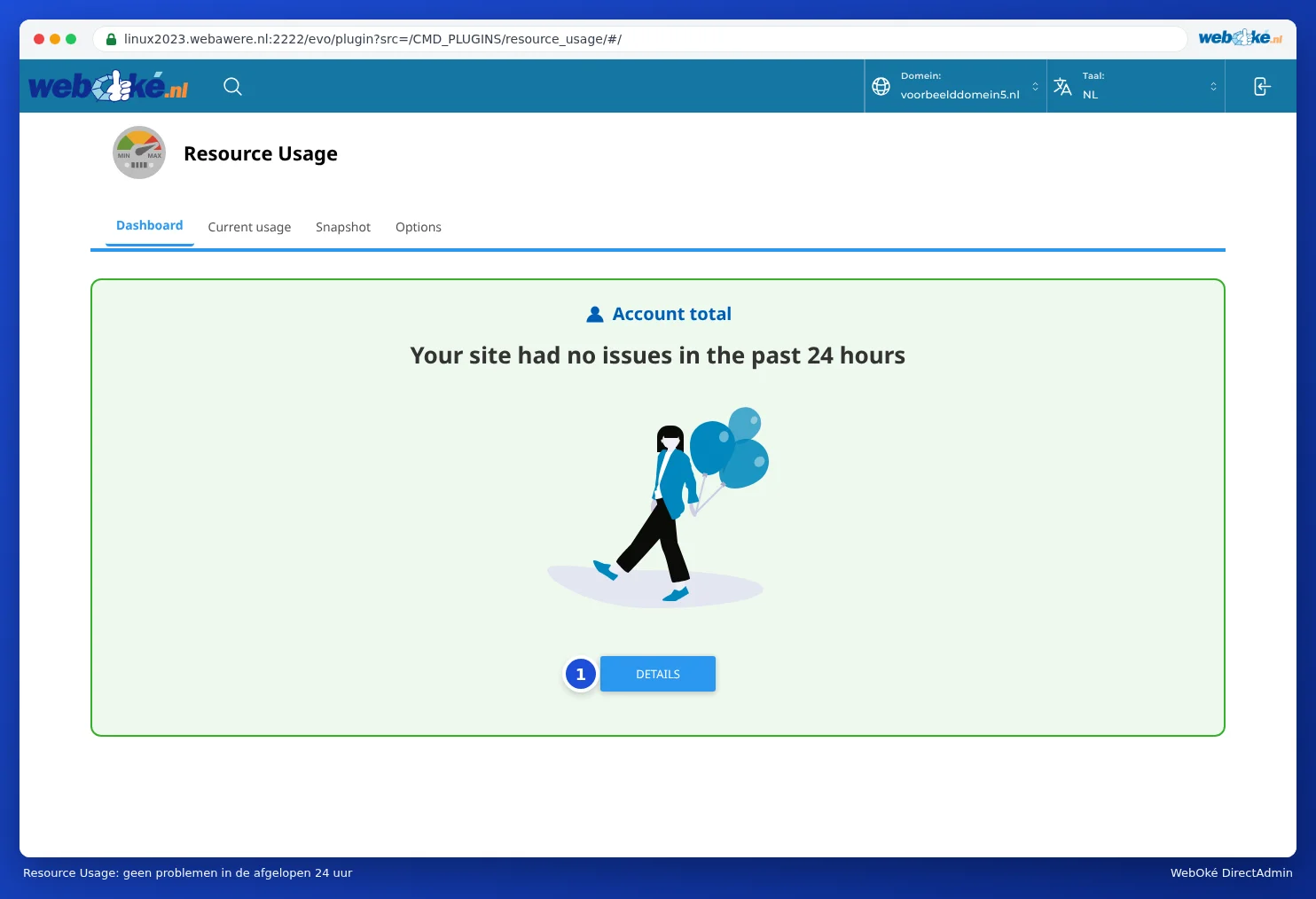
- On the Dashboard tab, you'll immediately see whether there were any issues in the past 24 hours. If it says Your site had no issues in the past 24 hours, everything is fine.
- If your package did hit a limit, you'll see which one here. Click DETAILS (1) for the graphs.
Reading the graphs
On the Current usage tab, at the top under Account total, you'll find a table with, for each limit, the current usage (Usage), your package's limit (Limit) and the faults. In the example below, the package uses 7% CPU (SPEED) out of the 800% it's allowed.
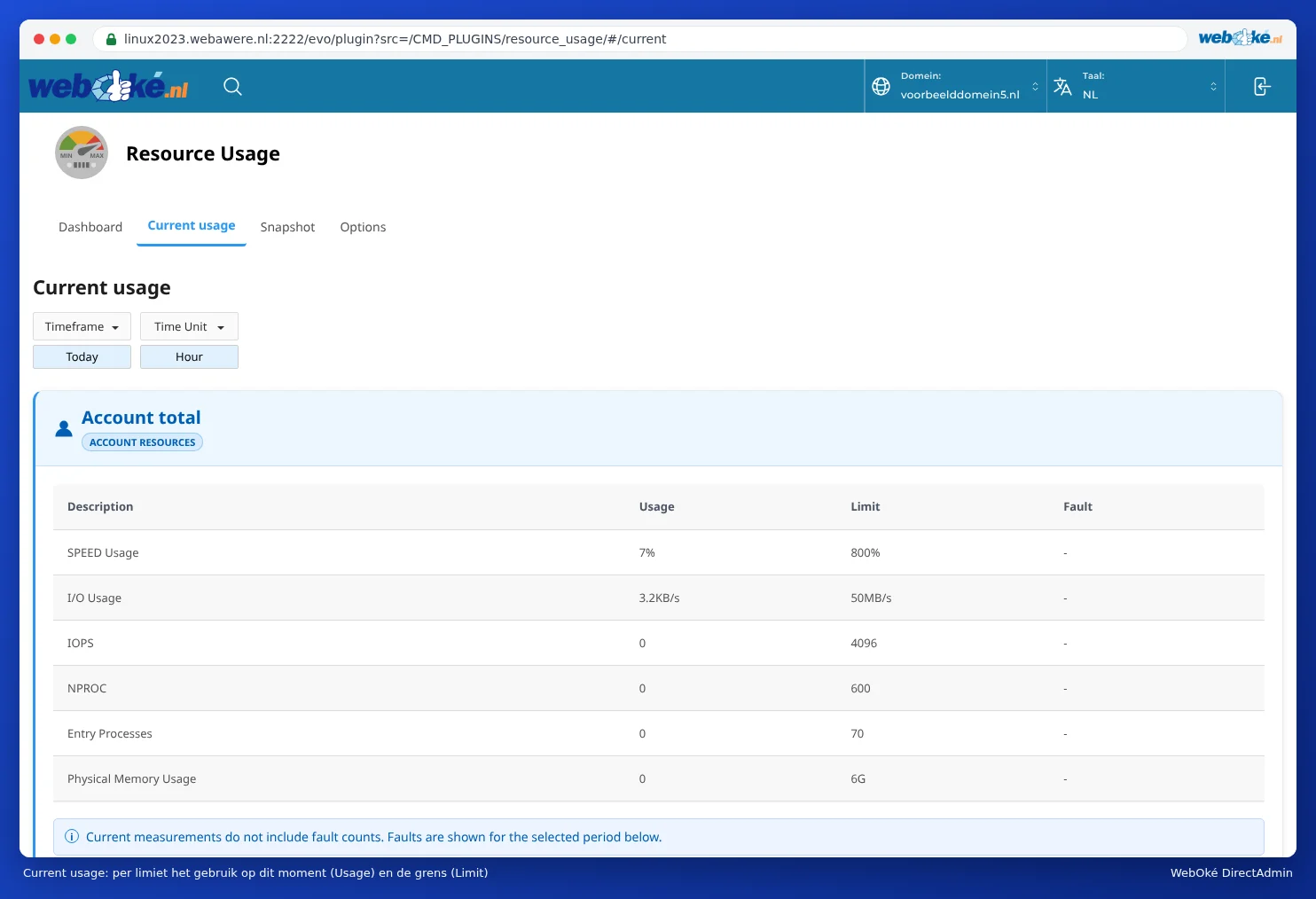
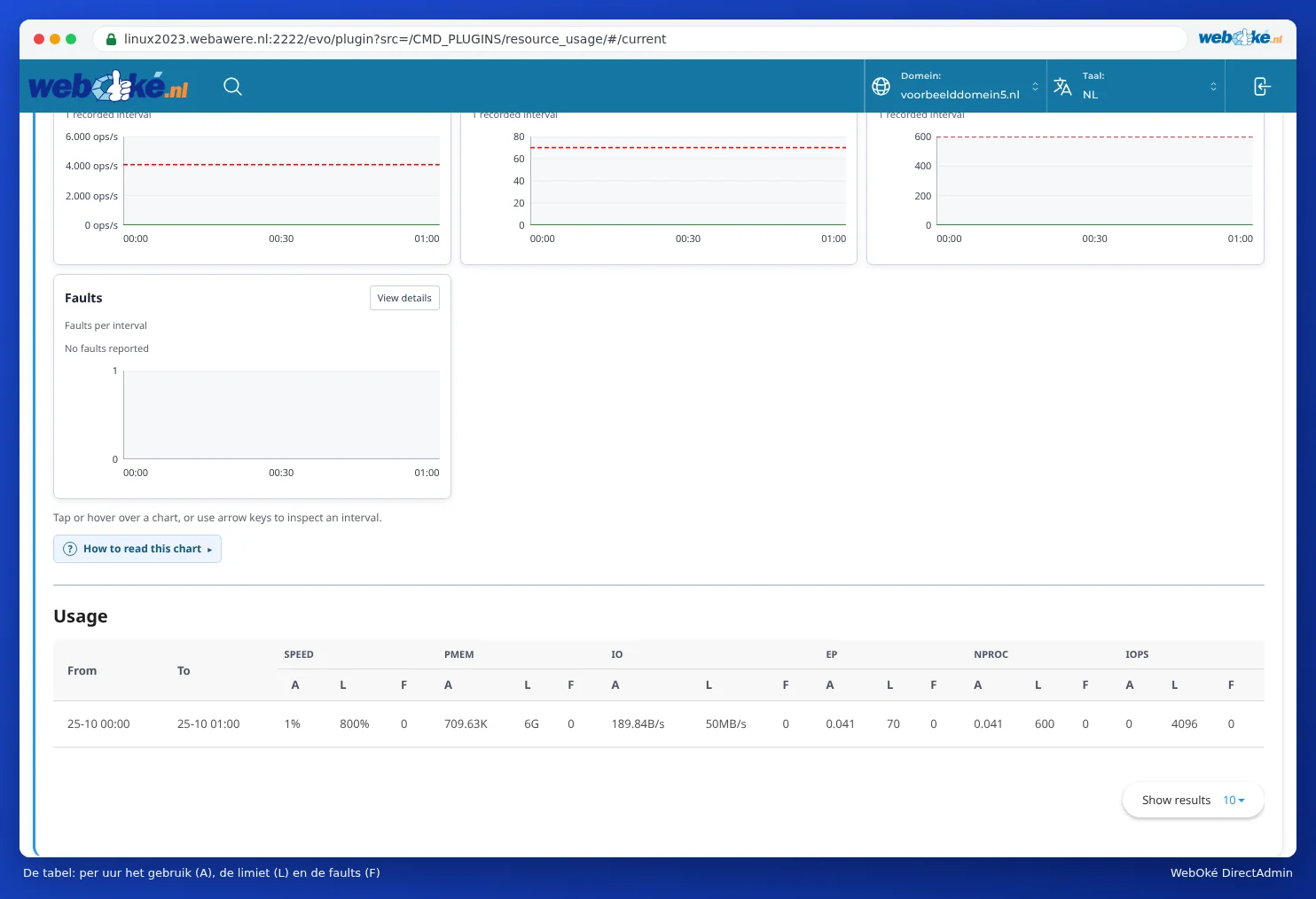
Below that, you'll find a graph for each limit. At the top, choose the period under Timeframe, for example today or the past 30 days. Each graph shows the usage (Average usage) and the limit (Limit). Each graph also shows Faults: how often your package hit that limit. A fault is the most important number: 0 is good.
| Graph | What does it measure? | What do you notice when it's full? |
|---|---|---|
| CPU | Processing power. 100% is one processor core. | Your website becomes slower. |
| Physical memory | The combined working memory of all your processes. | Scripts are terminated; error 500 or 503. |
| IO | How much data goes to and from the disk per second. | Your website becomes slower, especially with large files or heavy databases. |
| IOPS | How many read and write actions per second. | Your website becomes slower. |
| Entry processes | How many requests PHP is processing at the same time. This isn't the same as the number of visitors: one process helps a visitor in a fraction of a second and then moves on. | Visitors get 503 or Resource Limit Is Reached (see 503 or 'Resource Limit Is Reached': what now?). |
| Processes | The total number of processes for your package, including cron jobs and apps. | New requests or tasks can't start. |
Below the graphs is a table showing, per hour, three columns for each limit: A (usage), L (the limit) and F (the number of faults). The header shows the abbreviations: SPEED is CPU, PMEM is memory, EP is entry processes, NPROC is the number of processes.
How high the limits are depends on your package. A larger package has more processing power, more memory and more processes at once. See our webhosting page for what's included in each package.
The other tabs
- Snapshot: if your package hit a limit, the server takes a snapshot of the processes and web requests from that moment. This shows you which pages were being requested at the time. If nothing was hit, it says no snapshots.
- Options: here you could normally receive an email when you hit a limit. You can't change this setting yourself with us. It shows You cannot manage this option.
When should you take action?
- No faults: nothing to worry about, even if the graph occasionally spikes.
- A few faults now and then: usually a busy peak or a bot. Keep an eye on it.
- Faults every day, or your visitors notice: find the cause with X-Ray (see X-Ray: tracking down slow pages) and read 503 or 'Resource Limit Is Reached': what now?.
Tip: All domains in one package share the same limits. Do you have one important website alongside a few small ones, and does the important one slow down because of the rest? Then give it its own package.