
Chapter 16 · 16.7
Colleague leaving: safely taking over files, calendar and shared folders
The question: "An employee is leaving the company. How do I make sure we keep their files, calendar and shared folders, and that they can't access them afterwards?"
Follow the steps in this order. The most important rule: only remove the user once everything has been taken over. A removed user is permanently gone, along with all their files, calendars and contacts.
Step 1: transfer while the colleague is still there
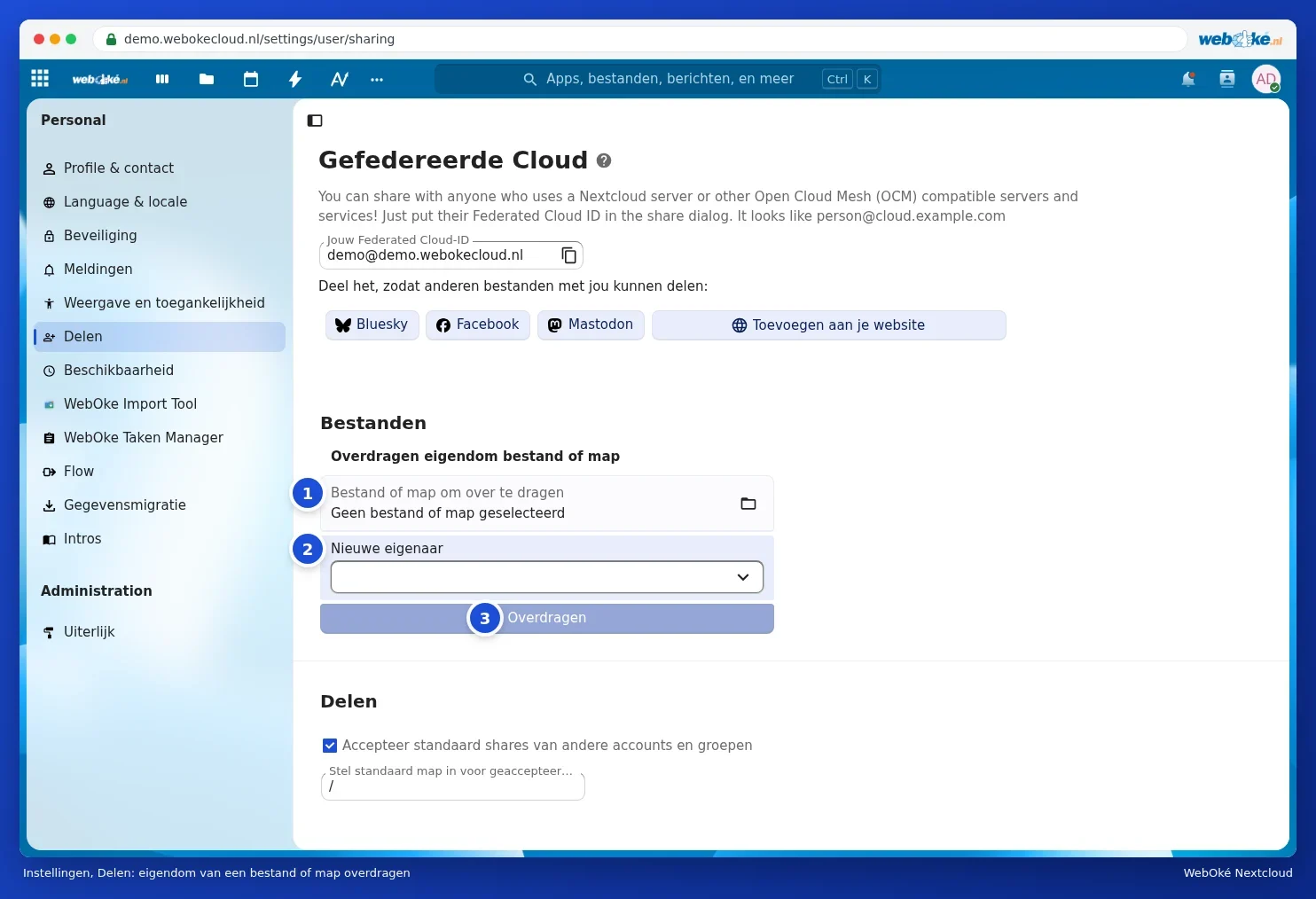
- The colleague transfers their files via Settings, Sharing, the Files block: choose the main folder or the important folders under File or folder to transfer, choose a successor under New owner, and select Transfer. See Transferring ownership when a colleague leaves.
- The successor accepts the transfer via the notification in Nextcloud.
- The successor takes over calendars and address books by having them shared, or by exporting and importing them. See Sharing, publishing and embedding calendars in your website and Contacts: creating, groups, importing and exporting.
- For Talk conversations, Deck boards and forms they own: give someone else admin rights there too.
Step 2: close off access
- As administrator, go to My WebOké, My Products and your Nextcloud package.
- Next to the user, in the User management block, choose Disable. The colleague can then no longer log in, but their data remains in place.
- Have them log out on their own devices, or revoke access for their devices. See Viewing, revoking, or remotely wiping devices and sessions.
Step 3: has the colleague already left?
If the colleague wasn't able to transfer anything, you as administrator can secure the files yourself:
- First re-enable the user if you had disabled them.
- In My WebOké, next to the user, choose Change password and set a new password.
- The login code by email goes to the user's email address. If you don't have access to that, change the email address via Edit data, or ask WebOké support for help.
- Log in as that user and transfer the files as in step 1.
- Then disable the user again.
Please note: only log in to a (former) employee's account if this fits within your agreements and privacy rules. If in doubt, discuss it first.
Step 4: tidying up
- Check that all important files are with the successor and that shared folders still work for the rest of the team.
- Only then, in My WebOké, next to the user, choose Delete. This cannot be undone.
- Is a new colleague joining? Create a new user and, if your package includes Office, reassign the Office licence.
Tip: avoid these kinds of jobs with team folders: these belong to the team, not to one person. See Team folders: a shared folder that belongs to the team and A club or family folder that doesn't disappear when someone leaves.